
10 website maintenance message templates and the 503 rule
Ten copy-paste website maintenance messages for planned work, outages and client notices, plus the 503 setup that keeps a site in Google while it is down.
Most maintenance pages are written ten minutes before the work starts, by whoever is about to do the work. It shows. “We’ll be back soon!” with no time, no timezone and no way to reach anyone, often served in a way that tells Google the whole site has been replaced by one paragraph of apology.
A maintenance page has two readers. The visitor reads the words and wants to know what is happening and when to come back. Search engines and uptime monitors ignore the words and read the HTTP status code, which is how they decide whether the outage is temporary. Below are ten messages you can copy, then the setup that gets the second reader right, with server configs we tested before publishing them.
If you came here for the monthly report you send a client about their site, that is a different document: what to include in a website maintenance report.
What the message has to say
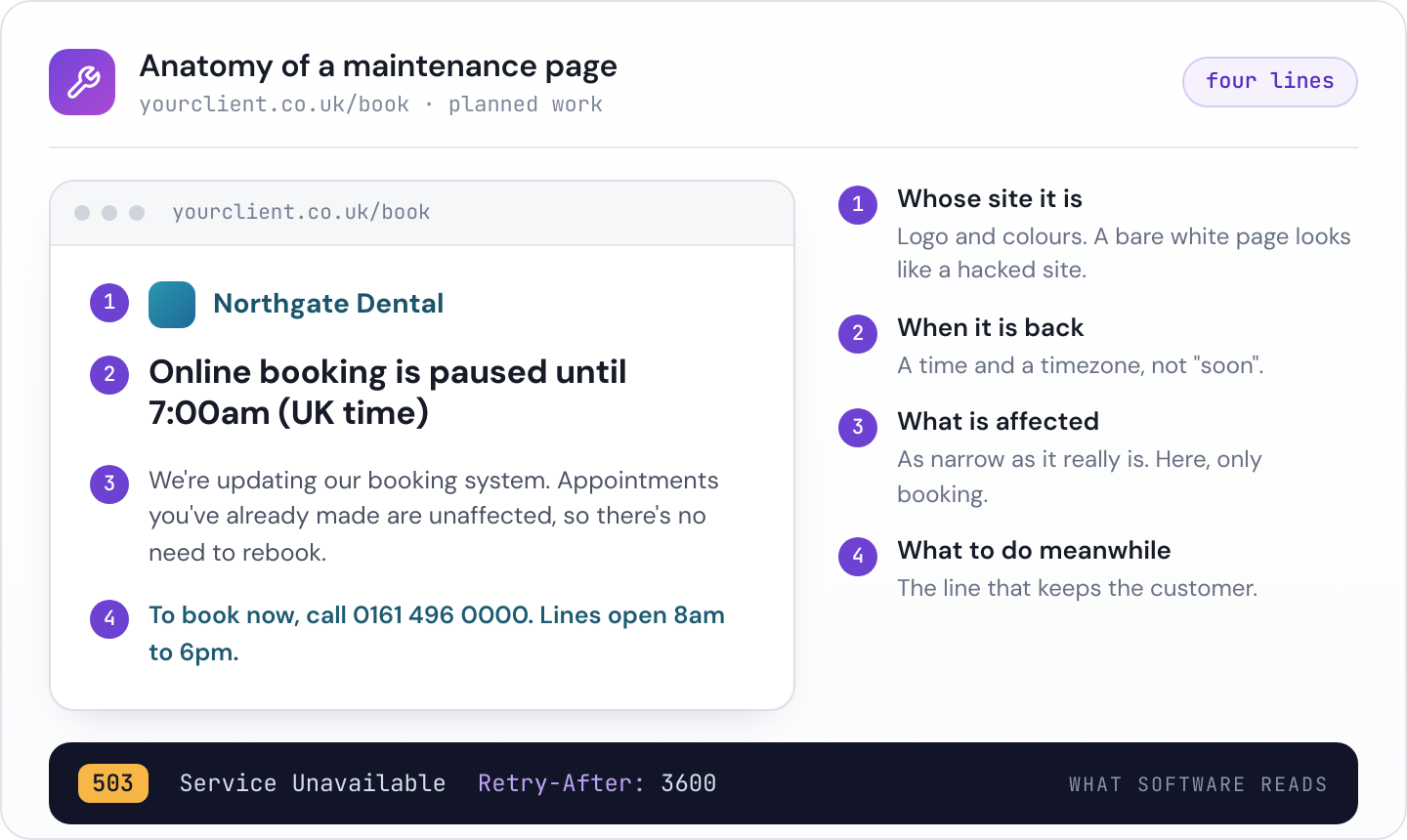
Start with the time. “Back by 7am UK time” lets a customer decide whether to wait or ring you instead. “Back soon” makes them guess, and a customer who guesses wrong goes elsewhere. If you really do not know how long the work will take, say when you will next update the page, and then update it.
Say what is affected, as narrowly as you can. “The shop is closed for an update” tells people more than “the site is down”. If only checkout or bookings are offline, keep the rest of the site up and put a banner on it rather than blocking every page.
Give people somewhere to go: a phone number, an email address, a status page or the social account where updates will appear. For a business that takes orders or bookings, this is the line that keeps the customer.
And make it look like the site it replaces. A bare white page reading “Maintenance” looks like an expired hosting account or a hacked site, and visitors treat it as one. Your logo and colours are enough.
Leave out countdown timers that are not tied to anything real, because one that reaches zero with the page still up does more damage than no timer at all. Leave out the jokes too, on any site where somebody is trying to pay.
Ten website maintenance message templates
Replace the bracketed parts and use them as they are. Every time carries a timezone, because your visitors are not all where you are.
1. Planned maintenance, short window
We’re updating [site name]
We’re carrying out planned maintenance and will be back by [time, timezone] today. Nothing you have saved will be affected.
Need us before then? Email [address] or call [number].
2. Scheduled maintenance with a fixed window
Scheduled maintenance: [day, date], [start] to [end] [timezone]
[Site name] is offline while we [upgrade our servers / update the booking system]. We’ve picked the quietest hours of the week to do it.
We’ll update this page if anything changes. For anything urgent, contact [address].
3. Online shop
The shop is closed for a short update
Checkout is offline until [time, timezone] while we make changes to [shop name]. Your account and saved basket are safe.
Orders placed before [time] are being processed as normal. If you need to order today, call [number].
4. Bookings and appointments
Online booking is paused until [time, timezone]
We’re updating our booking system. Appointments you’ve already made are unaffected, so there’s no need to rebook.
To book or change an appointment now, call [number]. Lines are open [hours].
5. Unplanned outage
Something has gone wrong, and we’re fixing it
[Site name] is unavailable because of a problem we’re working on now. We’ll update this page by [time, timezone] at the latest.
Updates are on [status page or social account]. Sorry for the disruption.
6. A longer job or a server move
We’re moving [site name] to new servers
The site will be unavailable from [start] until [end, timezone] while we move it. [Email / phone support / the customer portal] keeps working throughout.
If you need us during the move, contact [address] and we’ll reply as normal.
This one has a limit, covered further down: a day or two at most.
7. Advance notice banner on the live site
Planned maintenance: [site name] will be offline on [day, date] from [start] to [end, timezone]. [Link to details]
Put it up a few days ahead and take it down when the work starts.
8. Advance email to customers
Subject: [Site name] will be offline on [day, date]
Hi [first name],
We’re carrying out planned maintenance on [site name] on [day, date] from [start] to [end, timezone]. During that time you won’t be able to [log in / place orders / make bookings].
Anything you’ve already [ordered / booked] is unaffected. If you need us during the window, [contact method].
Thanks for bearing with us. [Name]
9. A heads-up from the agency to the client
Subject: Planned maintenance on [client site], [day, date]
Hi [name],
We’ll be [updating WordPress and its plugins / moving the site to the new server] on [day, date] between [start] and [end]. During that window the site shows a maintenance page telling visitors when it will be back and how to reach you.
We’ll test [checkout / the contact form / bookings] before switching the site back on, and email you when it’s done. If the timing clashes with a campaign or a busy day on your side, tell us by [deadline] and we’ll move it.
[Name]
10. Back online
Maintenance on [site name] is finished and everything is running normally. Thanks for your patience. If anything looks wrong, tell us at [address].
Use it as a banner for a day, as a social post or as the reply to anyone who got in touch during the window.
Serve it with a 503, not a 200
The words are for people. Crawlers and monitors read the status code, and that is where most maintenance pages go wrong.
A site in maintenance mode can answer requests in four common ways, and each one tells software something different.
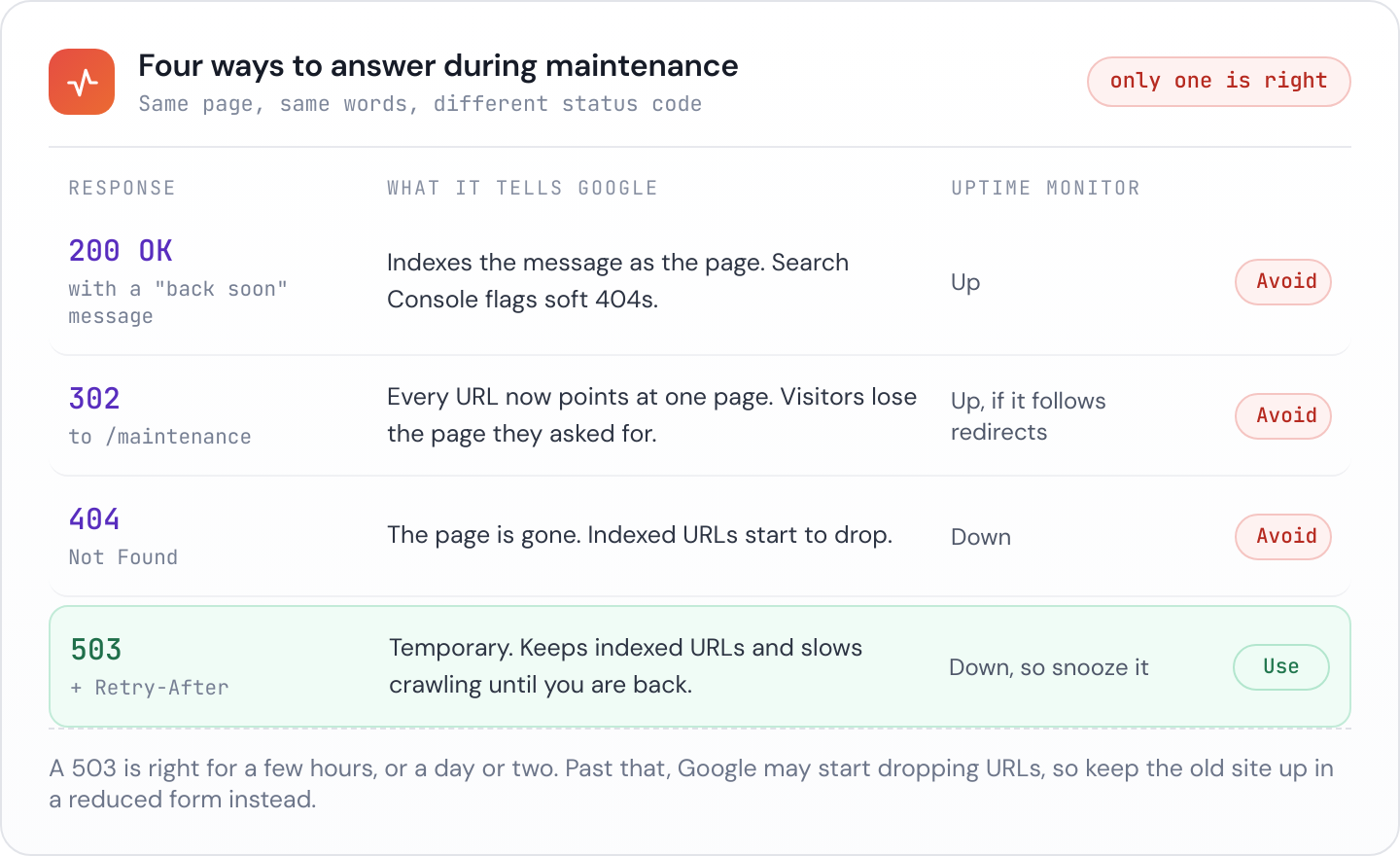
A 200 says the maintenance message is the page. Google indexes what it is given, and a “back soon” page returned with a 200 is what Search Console reports as a soft 404. It also tells an uptime monitor that all is well, which matters more than it sounds.
Redirecting every URL to a /maintenance page throws away the address each visitor asked for and points the whole site at one URL. A 404 tells Google the page is gone.
A 503 Service Unavailable says the page exists and cannot be served right now. Google’s documentation on how status codes affect its crawlers says that for 5xx responses it slows crawling, ignores whatever content came with the error and keeps URLs that are already indexed, for a while. When normal responses return, crawling picks back up.
Google repeated the point on 21 October, the day PHP shipped fixes for two critical security flaws and plenty of sites came down for emergency patching: serve a 503, not a 404 and not an error page with a 200. Search Engine Journal covered the reminder.
Send a Retry-After header with the 503, either a number of seconds or an HTTP date, to say when it is worth trying again. Google’s page on reducing the crawl rate mentions it for exactly this case. Browsers ignore it, so visitors see no difference.
There is a time limit. That same page talks about a few hours, or a day or two, and warns that a URL returning these errors for several days running may be dropped from the index. A weekend server move is fine. A three week rebuild behind a maintenance page is not: keep the old site up in a reduced form, with checkout or bookings switched off and template 7 as a banner, until the new one is ready.
Switching it on properly
Most platforms send the right status if you let them. The trouble usually starts when someone adds a custom page or a plugin.
WordPress
WordPress puts itself into maintenance mode during updates by writing a .maintenance file to the site root. While that file exists, every request gets a 503, a Retry-After: 600 header and the line “Briefly unavailable for scheduled maintenance”. WordPress ignores the file once it is ten minutes old, which is why a failed update rarely leaves a site stuck for long.
The catch is the branded version. If you add a wp-content/maintenance.php drop-in, WordPress loads it and stops before sending its own status code. Your file has to send the 503 itself, or the smart new page goes out as a 200:
<?php
http_response_code(503);
header('Retry-After: 600');
header('Cache-Control: no-store');
?>
<!doctype html>
<html lang="en-GB">
<meta charset="utf-8">
<meta name="viewport" content="width=device-width, initial-scale=1">
<title>Back shortly</title>
<h1>We're updating the site</h1>
<p>Back by 7am UK time. Need us before then? Email hello@example.com.</p>
</html>
Maintenance plugins are the other route, and many offer a “coming soon” mode alongside a “maintenance” mode. The difference between the two is meant to be the status code: a coming soon page is for a site that should be indexed, so it returns a 200. Whichever you switch on, check the response rather than trusting the label.
Laravel
php artisan down returns a 503 for every request. The --retry option adds the header, and --secret gives you a way past the page so you can test the site while everyone else sees maintenance:
php artisan down --retry=3600 --secret="a-long-random-string"Visit /a-long-random-string once and Laravel sets a cookie that lets you through. php artisan up ends it.
nginx
On a server you control, a flag file makes the simplest switch: create it to start maintenance, delete it to stop. This version keeps robots.txt and your own IP address outside the block:
# http block
geo $maintenance_bypass {
    default        0;
    203.0.113.10   1;   # your office or VPN address
}

# server block
set $maintenance 0;
if (-f /var/www/maintenance.on) { set $maintenance 1; }
if ($maintenance_bypass)        { set $maintenance 0; }
if ($uri = /robots.txt)         { set $maintenance 0; }
if ($maintenance)               { return 503; }

error_page 503 @maintenance;
location @maintenance {
    root /var/www/maintenance;
    rewrite ^ /index.html break;
    add_header Retry-After 3600 always;
    add_header Cache-Control "no-store" always;
}
We ran this on nginx 1.24 before publishing it. Pages came back as a 503 with both headers, robots.txt was served as normal and the bypass address saw the real site. The request for /style.css got the maintenance page too, with a 503. That is correct behaviour, and it means a maintenance page that loads its own stylesheet or images from the site renders as bare text. Inline them.
Apache
For Apache, the same idea goes in .htaccess. We tested it on 2.4.58, and the expr= condition on the header needs 2.4.10 or later:
RewriteEngine On
RewriteCond %{DOCUMENT_ROOT}/maintenance.on -f
RewriteCond %{REMOTE_ADDR} !=203.0.113.10
RewriteCond %{REQUEST_URI} !=/robots.txt
RewriteCond %{REQUEST_URI} !=/maintenance.html
RewriteRule ^ - [R=503,L]

ErrorDocument 503 /maintenance.html
Header always set Retry-After "3600" "expr=%{REQUEST_STATUS} == 503"
The /maintenance.html condition stops Apache blocking the very page it is trying to show.
Behind Cloudflare or another CDN
If the site sits behind a CDN, serve the maintenance page from the edge. A Cloudflare Worker or a similar edge function can return the 503 and the page without the request ever reaching the origin, so the page stays up while the server itself is switched off. During a server move, that is exactly what you need.
Leave robots.txt out of it
Both server configs above exempt robots.txt. A plugin or rule that blocks every URL catches it along with everything else, and Google treats that as a reason to stop. Its robots.txt documentation says that when the file returns a server error, Google stops crawling the site for the first 12 hours while it keeps retrying, then works from its last cached copy for up to 30 days.
For a one hour window that hardly matters, since every page is returning a 503 anyway. Maintenance that runs overnight or across a weekend gets a crawl stop of its own added to the outage, and avoiding it takes one line of config.
Warn your monitoring, then make sure it can see you
A 503 is a failed check by any uptime monitor’s definition, so planned work will page whoever is on call unless you tell the monitor first. Snooze the uptime check for the window and write down why, so nobody reading the alert history next month mistakes planned work for an outage. Then set a reminder to lift the snooze when the window ends. A snooze that outlives the maintenance is a forgotten switch in a different place.
The quieter failure runs the other way. A maintenance page served with a 200 looks perfectly healthy to a monitor that only checks whether the server answered. Turn maintenance mode on for a redesign and forget to turn it off: the dashboard stays green while every visitor reads “back soon” for a fortnight. A 503 turns a forgotten maintenance page into a failing check the next morning, which is one more reason to send it.
Check the site when it comes back
Switching maintenance off is a deploy like any other, and it deserves the same five minutes:
- Load the home page and two or three deep pages and confirm they return 200. The HTTP status checker shows the status code and any redirect chain for a URL.
- Check
robots.txtis the real file, served with a 200. The robots and sitemap checker looks at both files in one go. - If you touched the server config, confirm HTTP still redirects to HTTPS with the HTTPS redirect checker.
- Do the thing the maintenance was for: place a test order, send the contact form, make a booking.
- Purge the CDN if there is any chance it cached the maintenance page.
- Lift the snooze on the uptime check.
Make maintenance windows part of the care plan
For agencies, planned maintenance belongs in the care plan, not with whoever happens to be free on a Sunday morning. Agree a regular window with the client when you write down what the plan covers during onboarding. Keep a branded maintenance page ready for each site, so nobody writes one in a hurry, and send template 9 a few days before anything bigger than a routine update.
Then report it. An update done out of hours, with the site back in forty minutes and checkout tested, is the kind of work clients never see unless you tell them, and telling them is how a retainer proves its worth.
Janitor runs around two dozen checks on every site you manage, uptime as often as every 15 minutes, and lets you snooze any check with a reason while planned work is under way. Serve the maintenance page with a 503 and the snooze covers the window you planned. If the page is still up after it ends, you hear about it from the check rather than from the client.